
Browser Support
M3U8, MP4 and DASH Browser Support
A practical browser comparison for HLS/M3U8, MP4 and MPEG-DASH playback tests.
Last updated: 2026-06-04
A video link can work in one browser and fail in another. That does not always mean the link is broken or the player is wrong. M3U8/HLS, direct MP4 files and MPEG-DASH MPD manifests use different browser features, codec paths and access rules.
Use this guide when you need to decide which browser to test first, or when a stream plays in Safari but not Chrome, an MP4 file fails in the browser, or a DASH manifest works in one player but not another. For a clean test, use only public or authorized video links.
Quick Browser Testing Summary
- M3U8 / HLS: test Safari first when you want to confirm native HLS behavior, then test Chrome or Edge for hls.js and MediaSource behavior.
- MP4: test Chrome or Edge first for a common baseline, then compare Safari and Firefox if codec, MIME type or Range request behavior looks suspicious.
- DASH / MPD: test Chrome or Edge first because most browser DASH playback depends on a JavaScript player such as dash.js and MediaSource support.
- Firefox: use it as a useful second check for codec, CORS and MediaSource differences rather than assuming it will match Chrome exactly.
Why M3U8 and HLS Behave Differently
HLS was developed by Apple, and Safari has strong native HLS support on Apple platforms. That is why an M3U8 stream may play directly in Safari while the same M3U8 link needs hls.js or another JavaScript player in Chrome, Edge or Firefox.
This distinction is important when you see searches such as
hls not playing in chrome, chrome hls support or
does chrome support m3u8. Chrome can play many HLS streams in
a web player, but the page usually needs a player library and the source
must allow browser requests for the playlist, variant playlists, segments
and key files.
If you are testing an HLS stream, start with the M3U8 Player Online. If the stream plays in VLC but not in the browser, compare the result with why M3U8 can work in VLC but not in the browser and the M3U8 CORS error guide.
Why MP4 May Play in One Browser but Not Another
MP4 looks simple because it is often one direct video file. In practice,
mp4 not playing or mp4 video not playing in browser
can come from several different causes. MP4 is a container, not a promise
that every browser can decode every video and audio stream inside it.
A browser-friendly MP4 usually needs a real media response, a suitable MIME type, browser-supported codecs such as common H.264/AAC combinations, HTTPS consistency and useful byte Range request handling. Safari can be stricter about some media delivery details, while Chrome and Edge are often convenient first checks for a desktop baseline.
Use the MP4 Player Online when you want to test a direct MP4 URL. If the file exists but playback fails, read why an MP4 URL may not play in the browser before changing the player.
Why DASH and MPD Are Usually Chrome or Edge First
MPEG-DASH playback in a browser usually depends on an MPD manifest, segment requests, MediaSource support and a JavaScript player such as dash.js. That makes Chrome or Edge a practical first test environment for ordinary browser-side DASH playback.
DASH failures are often not visible from the MPD URL alone. The manifest may load while initialization segments, media segments, codec declarations or license requirements still prevent playback. If the stream uses DRM, a simple public MPD test cannot replace the authorized license flow.
Use the MPEG-DASH Player for public or
authorized MPD links, then compare the result with
how to test an MPD manifest online.
Terms like mpd player, mpd not playing and
dash not playing in browser usually point to manifest,
segment, codec, CORS or DRM-related checks rather than one universal
browser fix.
How to Run a Clean Cross-Browser Test
- Use the direct M3U8 playlist, MP4 file URL or MPD manifest URL.
- Test only links you own, manage or are authorized to access.
- Keep the same URL, network and device conditions when comparing browsers.
- Check whether the browser receives media responses instead of HTML, JSON or login pages.
- Compare the Playback Log with browser network details and source server logs.
What the Playback Log Can Tell You
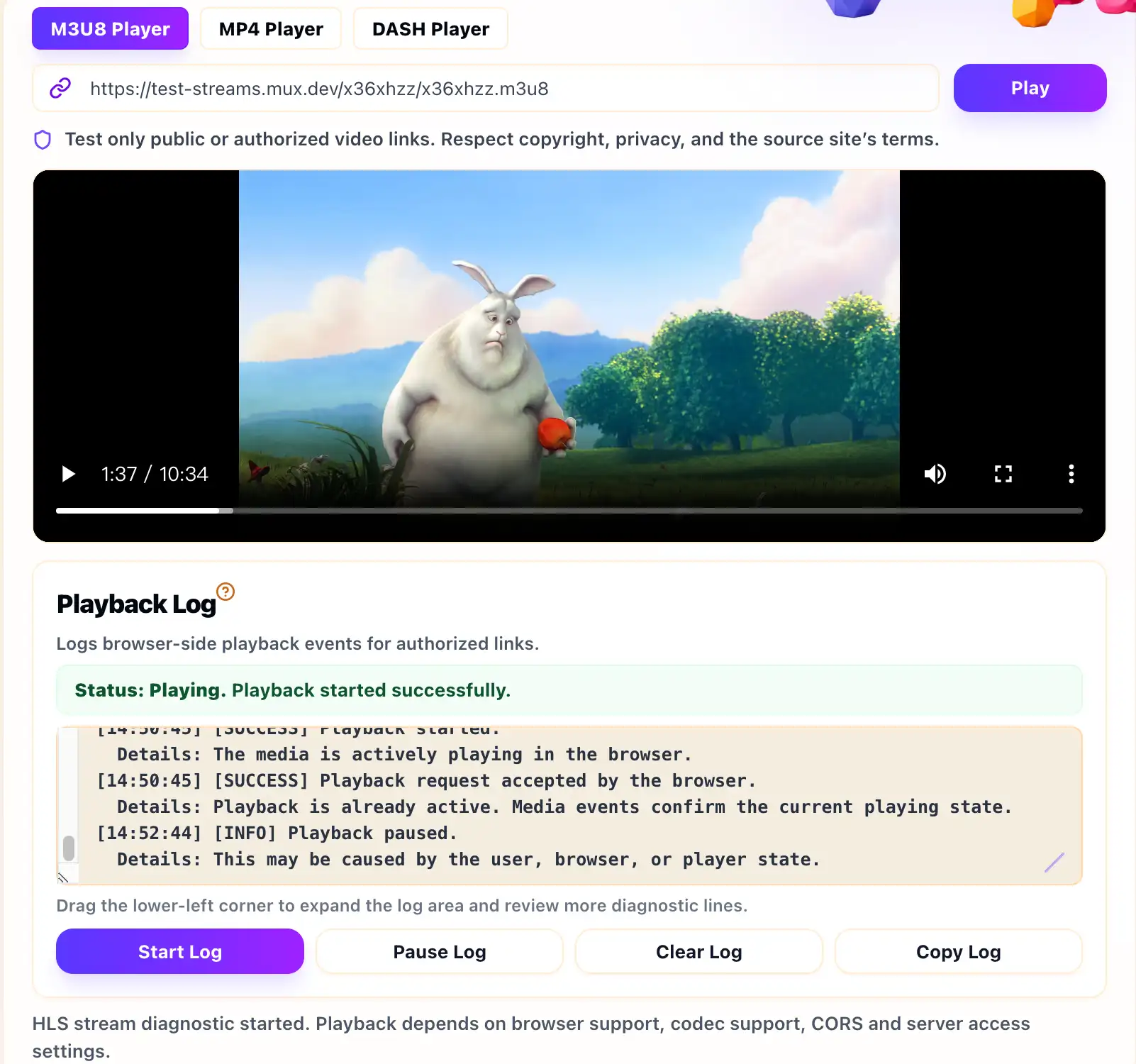
The Playback Log records browser-side loading events, warnings and playback errors. It can show whether the player reached metadata, whether playback started, or whether a media library reported a likely manifest, segment, network or codec issue.
The log cannot prove what happened inside your CDN, storage provider, firewall, license server or private application. It also cannot bypass CORS, DRM, login walls, token rules, copyright restrictions or source website permissions. Treat it as a browser-side clue, not as a full server diagnosis.
Browser Support FAQ
Does Chrome support M3U8?
Chrome can play many M3U8/HLS streams through a JavaScript player such as
hls.js when MediaSource and the source server configuration allow it. Do
not assume a bare M3U8 URL will behave the same as Safari native HLS.
Why does HLS play in Safari but not Chrome?
Safari has native HLS support. Chrome often relies on hls.js or another web
player path, and the stream must pass browser CORS, codec, segment and
access checks.
Why does an MP4 play in one browser but fail in another?
The file may use a codec, MIME type, server response or Range request
behavior that one browser accepts and another rejects. Test the same URL in
the MP4 Player Online and compare browser errors.
Is DASH supported directly by every browser?
No. Browser DASH playback usually depends on a JavaScript player, an MPD
manifest, MediaSource support and compatible media segments. DRM-protected
DASH also needs the correct authorized license flow.
Can MetisTools fix browser playback errors?
No. MetisTools helps you test browser playback and review diagnostic clues.
The actual fix usually belongs in the source URL, server headers, codec
settings, CDN rules, player integration or authorization flow.
Related Guides
How to Test an M3U8 Stream Online
A practical first test for HLS playlists, browser playback, Playback Log clues and access limits.
What Is an M3U8 File?
A plain-English explanation of M3U8 playlists, HLS segments, variants and safe testing boundaries.
Why an M3U8 Stream Works in VLC but Not in the Browser
A common HLS troubleshooting guide for streams that play in VLC but fail in web players.