
MP4
Why an MP4 URL May Not Play in the Browser
A practical guide for direct MP4 links that fail in online players or browser video elements.
Last updated: 2026-06-02
A direct MP4 URL can fail in the browser even when the file exists. The browser needs more than a reachable link. It needs a playable media response, compatible codecs, useful headers and permission to access the file from the page where the player runs.
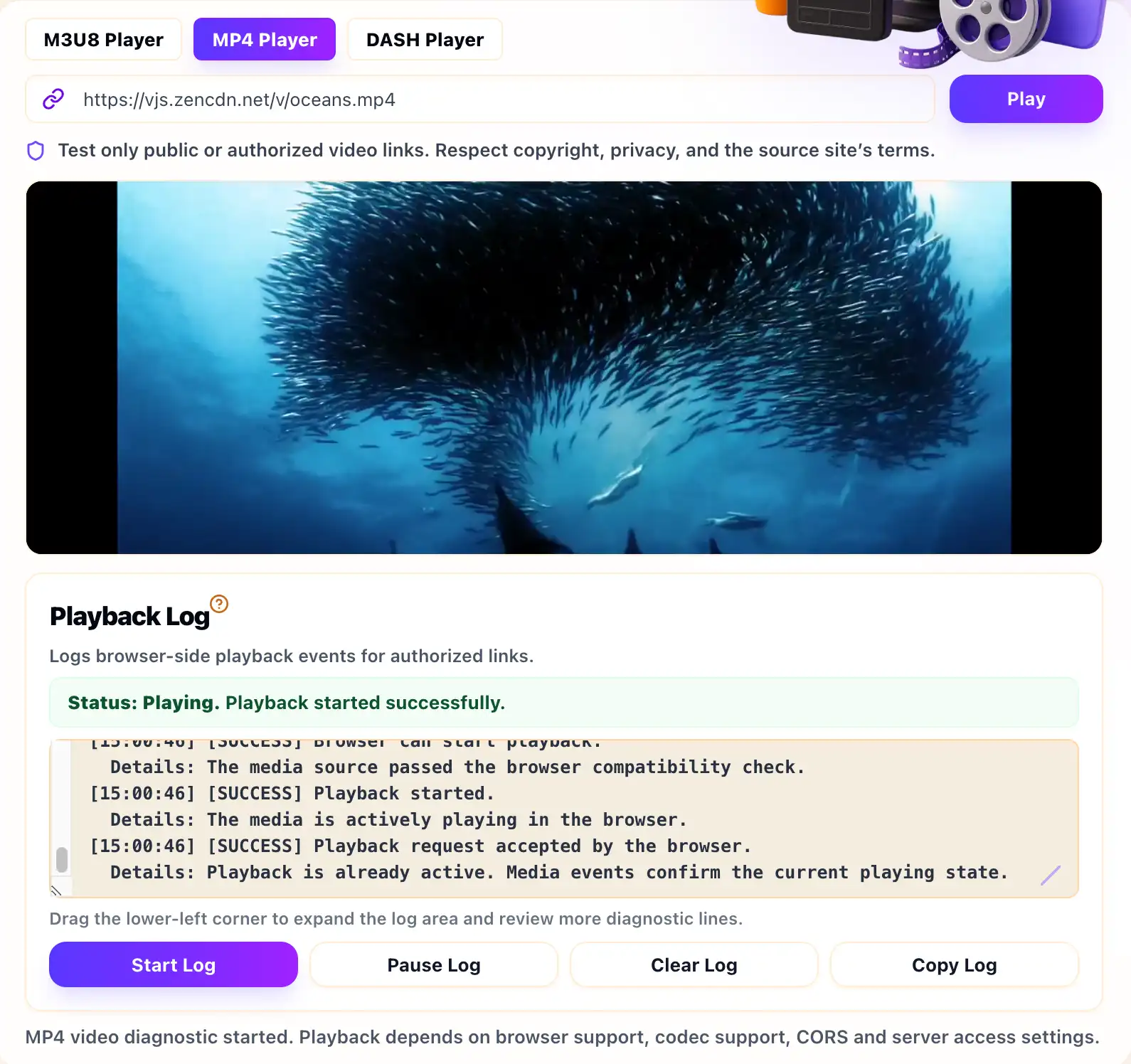
Start with the MP4 Player Online when you want to test a public or authorized MP4 file URL. This page is for playback testing only. It is not a downloader, converter or tool for copying video from websites.
Make Sure the URL Points to an MP4 File
Many links that look like video links are actually webpages, redirect URLs or API endpoints. A browser video element expects a real media response. If the URL returns HTML, a login page, a JSON error or a blocked redirect, the player cannot treat it as a normal MP4 file.
If you manage the file, open the network response and confirm that the content is the video file itself. If the link requires cookies, signed tokens or a user session, it may fail outside the original website or authorized player flow.
Check MIME Type and Codec Support
A common browser error is “No video with supported format and MIME type found.” This can happen when the server sends an unexpected content type, the file is not actually MP4, or the video/audio codecs are not supported by the browser.
MP4 is a container, not a guarantee that every browser can decode the content inside it. For broad web playback, the file usually needs common browser-supported video and audio codecs. If only one browser fails, compare codec support across devices before changing the player.
Verify Range Request Support
Browsers often use byte Range requests to seek, buffer and read metadata efficiently. If the server does not support Range requests correctly, playback may start slowly, seeking may break or metadata may not load as expected.
This is especially important for larger MP4 files. If you own the hosting setup, check whether the server or CDN returns partial content responses when the browser asks for a byte range. A simple file download test is not always enough to prove browser playback is healthy.
Look for Expired Links and Access Rules
Some MP4 URLs are temporary. They may expire, require a specific referrer or only work for a signed user session. A test page cannot supply private access it does not have. If a private URL fails, test it in the authorized environment or generate a fresh link you are allowed to use.
If your project also uses streaming playlists, compare the MP4 test with how to test an M3U8 stream online or how to test an MPD manifest online. Each format has different browser requirements.
Example MP4 Response Headers
When you own the source, response headers can explain why a browser accepts or rejects an MP4 URL. The exact values depend on your server, but these are common details to review.
Content-Type: video/mp4
Accept-Ranges: bytes
Content-Length: 24839120
Access-Control-Allow-Origin: https://metistools.com
If the server returns HTML or a JSON error with a video-looking URL, the player still cannot treat it as a direct MP4 file.
MP4 Browser Playback Checklist
- Confirm the URL returns a real MP4 file, not a webpage.
- Check MIME type, codec support and HTTPS consistency.
- Verify byte Range support for larger files.
- Check whether the link is expired, signed or private.
- Use the Playback Log as a browser-side clue, not a complete server diagnosis.
Related Guides
How to Test an M3U8 Stream Online
A practical first test for HLS playlists, browser playback, Playback Log clues and access limits.
M3U8, MP4 and DASH Browser Support
A practical browser comparison for HLS/M3U8, MP4 and MPEG-DASH playback tests.
What Is an M3U8 File?
A plain-English explanation of M3U8 playlists, HLS segments, variants and safe testing boundaries.